Adding Modbus Devices
This guide explains how to register new WAGO controllers or energy analyzers or Modbus-supported devices within the WEVA interface.
Prerequisites
- Administrator credentials for the WEVA dashboard (You must be an admin user).
- Device network details (IP Address, Modbus Client ID).
- Controller Modbus service must be enabled and active.
1. Creating Device Interface
Login to WEVA and navigate to the Add device page.
- Fill in the form with the information of the device.
Device nameis for the user to give.IP address,Port NumberandClient IDare the information gotten from the device to connect to it successfully.Device Typeis not needed. It is merely for identification purposes.- Select a point on the map where the device is located. (You cannot write in the
Addressfield. It is automatically updated from the map when clicked).
2. Configure Device Parameters
Enter the technical specifications for the target device.
| Field | Description | Example |
|---|---|---|
| Name | Unique identifier for device. | Transformer_A_Meter, DeviceType01 |
| IP Address | IPv4 address of the device. | 192.168.1.10 |
| Port | Modbus TCP port. | 502 |
| Unit ID | Modbus slave address. | 1 |
| Device Type | Select from images. (QOS feature) | WAGO 879-8421 |
| Location | User to know location of device | Click on the map |
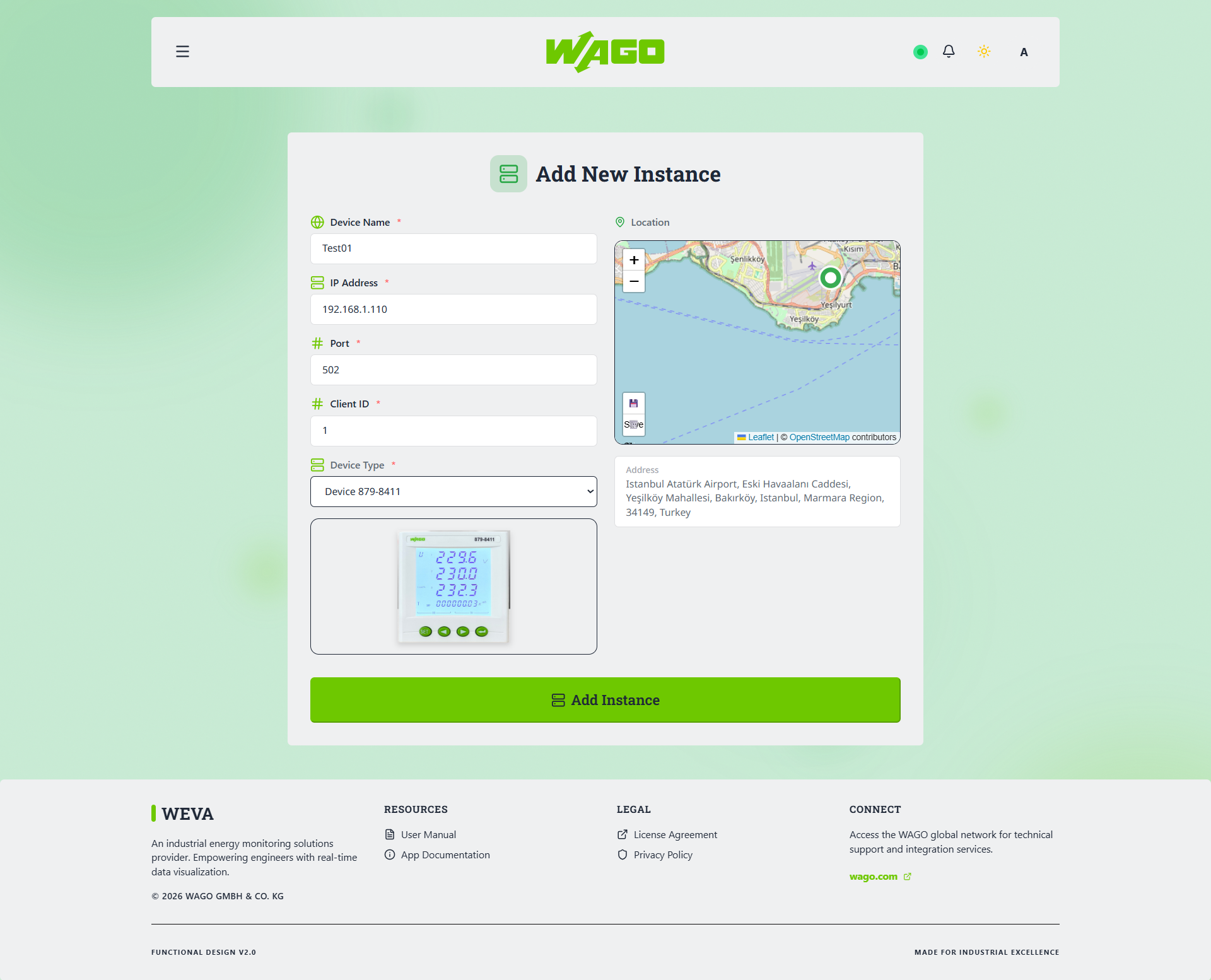 The 'Add Device' page with sample technical data filled in.
3. Verification of Connectivity
After saving, the system will attempt a connection and initial polling. If successful, the system gives a green message. If an error occurs, the system gives a red message.
- Observe the Status column in the device list.
- Green: Communication established.
- Red: Connection timeout. Check physical cabling and IP settings. Also check WDX connectivity with the device.
4. Troubleshooting Initial Connections
If the device remains offline:
-
Verify that no other master is locking the Modbus connection (Max 1 connection for some legacy controllers).
-
Ping the device from the WEVA host terminal:
ping <device-ip> -
Access WDX and try restarting the connection from there.
Image: View of the device list showing one 'Online' and one 'Offline' device.